Slack
Use Meshes to post templated Slack messages from product events.
Use the Slack integration when Meshes should notify a channel about product behavior. In a Meshes workspace, you connect Slack, create a rule for the event you care about, select the destination channel, and write the message template Meshes should render.
Supported actions
- Send Message posts a templated message to a selected Slack channel.
Create the connection
- Open Connections in your Meshes workspace.
- Click New Connection.
- Select Slack.
- Give the connection a clear name.
- Click Connect to Slack and complete the OAuth flow.
After authorization, Meshes loads the channels available to the connected Slack workspace.
Create a rule
- Open Rules and click New Rule.
- Select the event type that should trigger the Slack message, such as
user.signuportrial.ending. - Select the resource type for that event.
- Choose your Slack connection.
- Select Send Message.
- Choose the Slack channel.
- Enter the message template Meshes should render.
- Save the rule.
Example template:
New signup: {{email}}
Plan: {{plan}}
Templates can use {{field}} interpolation, including dot notation such as {{user.name}}.
Copyable template ideas
Short, emoji-led messages tend to scan well in Slack. The field names below are examples. Replace them with the keys from your own Meshes event payload.
New signup
🎉 New signup
Email: {{email}}
Plan: {{plan}}
Source: {{signup_source}}
Trial started
🚀 Trial started
Account: {{account.name}}
Plan: {{plan}}
Owner: {{owner.name}}
Lesson completed
✅ Lesson completed
User: {{user.name}}
Lesson: {{lesson.title}}
Course: {{course.title}}
High-intent page visit
👀 High-intent page visit
User: {{email}}
Page: {{page.path}}
UTM: {{utm_source}}
Payment failed
💳 Payment failed
Customer: {{customer.email}}
Plan: {{plan}}
Retry at: {{retry_at}}
Upgrade completed
📈 Upgrade completed
Account: {{account.name}}
From: {{previous_plan}}
To: {{plan}}
MRR: {{mrr}}
Send a test event
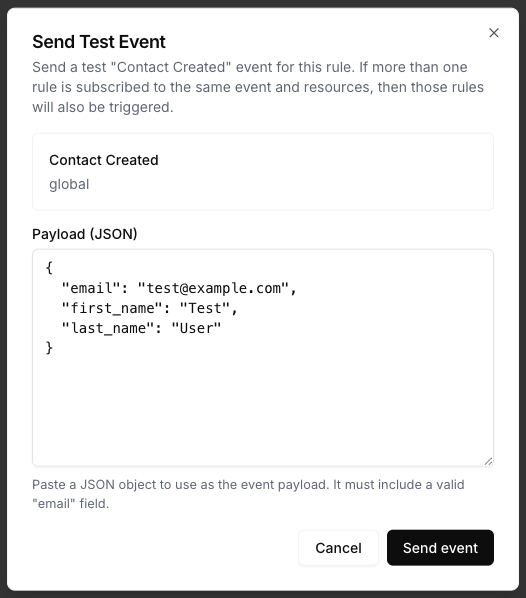
Use Send Test Event on the rule to confirm the message renders the way you expect.
{
  "email": "test@example.com",
  "plan": "pro"
}
Review results
After the event runs, open Events and inspect the Slack delivery details. Meshes shows whether the rule completed, what action ran, and any retries or failures.
Notes
- Channels are loaded from the connected Slack workspace.
- Private channels only appear if the Slack app has already been invited.
- Direct messages are not supported.
- If a template renders to an empty message, Meshes does not send the post.