Resend
Use Meshes to manage Resend segments and send template emails from product events.
Use the Resend integration when one product event should update lifecycle state and send an email in the same flow. In a Meshes workspace, you create the Resend connection, build a rule for the event you care about, and choose whether the rule should update a segment or send a template email.
Supported actions
- Add to Segment upserts the contact and adds that contact to a selected Resend segment.
- Remove from Segment upserts the contact and removes that contact from a selected Resend segment.
- Send Email sends a selected Resend email template, with optional subject and from overrides.
Create the connection
- Open Connections in your Meshes workspace.
- Click New Connection.
- Select Resend.
- Give the connection a clear name.
- Enter the API Token from Resend.
- Save the connection.
Create a rule
- Open Rules and click New Rule.
- Select the event type that should trigger the Resend action, such as
user.signuportrial.started. - Select the resource type for that event.
- Choose your Resend connection.
- Select Add to Segment, Remove from Segment, or Send Email.
- Choose the segment or email template.
- If you use Send Email, set
subjectandfromoverrides only when you want to override the template defaults. - Map the event fields Meshes should send to Resend.
- Save the rule.
The mapping catalog includes email, firstName, lastName, contact properties from Resend, and a template_variables object for template sends.
Use template_variables to send the replacement values that the selected Resend email template expects. Each key inside template_variables should match a variable used by that Resend template. If the template uses values such as firstName and plan, map those values into template_variables.firstName and template_variables.plan in Meshes so Resend can render the final email content.
Send a test event
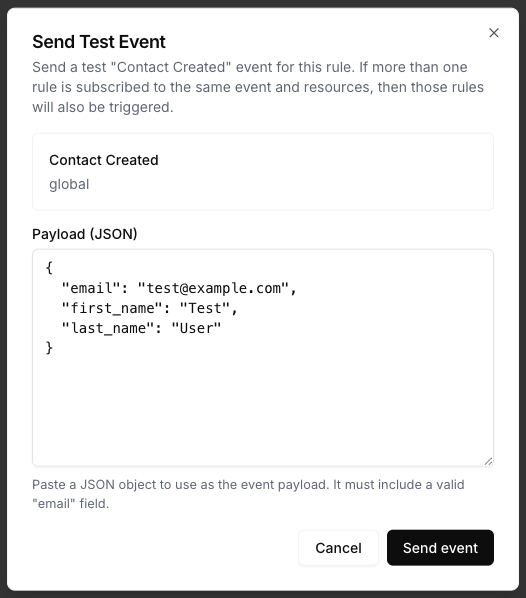
Use Send Test Event on the rule to verify the segment or email action.
{
  "email": "test@example.com",
  "first_name": "Test",
  "last_name": "User",
  "template_variables": {
    "firstName": "Test",
    "plan": "growth"
  }
}
In this example, template_variables.firstName and template_variables.plan are the values Resend uses to replace those variables when it renders the selected email template.
Review results
After the event runs, open Events and inspect the Resend delivery details. Meshes shows whether the rule completed, what action ran, and any retries or failures.
Notes
- Resend segments and templates are loaded from the connected account.
- Resend actions upsert the contact before segment or template delivery runs.
- Use
template_variablesfor the actual replacement values the selected Resend template should render in the outgoing email. subjectandfromoverrides are optional unless the template does not already define them.