Customer.io
Use Meshes to track behavioral events and identify people in Customer.io via the Pipelines CDP API.
Use the Customer.io integration when a product event should identify a person and track their behavior in Customer.io. In a Meshes workspace, you create the connection with a CDP API Key, build a rule for the event you care about, and the track_event action identifies the person first and then tracks the event in the Customer.io Pipelines API.
Supported actions
- Track Event identifies the user in Customer.io and tracks the behavioral event so campaigns, broadcasts, and segments can react to the activity.
Create the connection
- Open Connections in your Meshes workspace.
- Click New Connection.
- Select Customer.io.
- Give the connection a clear name.
- Select your Region (
usoreu). US accounts usehttps://cdp.customer.io/v1and EU accounts usehttps://cdp-eu.customer.io/v1. - Enter the CDP API Key from Customer.io workspace → Data & Integrations → Integrations → Customer.io API.
- Save the connection.
Create a rule
- Open Rules and click New Rule.
- Select the event type that should trigger the Customer.io track, such as
user.signuporfeature.used. - Select the resource type for that event.
- Choose your Customer.io connection.
- Select Track Event.
- Map the event fields Meshes should send to Customer.io.
- Save the rule.
The mapping catalog includes email, userId, anonymousId, and an optional event_name_override field. Customer.io attributes are schemaless, so any other top-level keys in the event payload become Customer.io traits during identify.
Use event_name_override when you want the Customer.io event name to differ from the Meshes event name. For example, if the Meshes event is user.signup but you want Customer.io to record it as Signed Up, set event_name_override to Signed Up.
Field mapping
userId: The preferred stable identifier for the person in Customer.io. When present, Meshes uses it for identify and track calls.email: The fallback identifier for the person in Customer.io. IfuserIdis empty, Meshes usesemailto identify and track the person. Also sent as a trait in the identify call.anonymousId: A stable anonymous identifier for visitors or events that do not have a knownuserIdoremail. If none ofuserId,email, oranonymousIdis present, Meshes generates a new UUID and sends it asanonymousId.- Additional payload keys: Any other top-level keys in the event payload, such as
first_name,last_name,plan, orcompany, are sent as Customer.io traits during identify. Customer.io creates those attributes automatically; no schema setup is required. event_name_override(optional): Overrides the event name sent to Customer.io. Defaults to the Meshes event name if not set.
Region note
- US region: Meshes uses
https://cdp.customer.io/v1as the Pipelines API base URL. - EU region: Meshes uses
https://cdp-eu.customer.io/v1as the Pipelines API base URL.
Make sure the CDP API Key you enter matches the region you select.
Send a test event
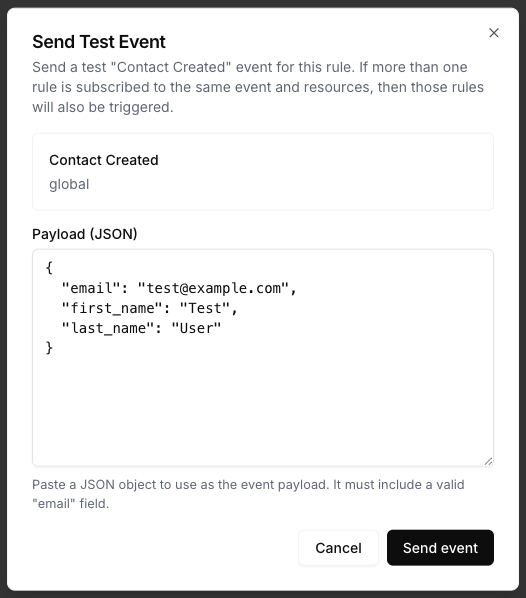
Use Send Test Event on the rule to verify the identify and track actions reach Customer.io.
{
  "userId": "usr_2048",
  "email": "test@example.com",
  "first_name": "Test",
  "last_name": "User",
  "plan": "pro"
}
In this example, Meshes identifies the person using userId: "usr_2048" and sends traits like email, first_name, last_name, and plan, then tracks the Meshes event in Customer.io. If userId were missing, Meshes would fall back to email. If none of userId, email, or anonymousId is present, Meshes generates an anonymous identifier for that delivery.
Review results
After the event runs, open Events and inspect the Customer.io delivery details. Meshes shows whether the rule completed, what identify and track responses were returned, and any retries or failures.
Notes
- Map
userId,email, oranonymousIdwhenever you have a stable identifier. Meshes triesuserIdfirst, thenemail, thenanonymousId, and generates an anonymous UUID only when none is present. - Both identify and track are sent in sequence. If identify fails, the track call is not sent.
- The CDP API Key authenticates with HTTP Basic auth using the key as the username and an empty password.
- Additional top-level payload fields are applied as Customer.io traits during identify. The track call records the event with the resolved identifier and timestamp; Meshes does not duplicate the payload traits as track properties.
- Customer.io creates person attributes the first time you send them, so Meshes does not require a preloaded Customer.io attribute schema for traits.
- Use
event_name_overridesparingly — consistent event names make Customer.io campaigns easier to maintain.