SendGrid
Use Meshes to send SendGrid dynamic templates or inline HTML emails from product events.
Use the SendGrid integration when a Meshes event should send a transactional email without adding destination-specific email logic to your application. In a Meshes workspace, you create the SendGrid connection, choose whether each rule should send a Dynamic Template or an inline HTML email, and map the event fields that the message needs.
Supported actions
- Send Email (Template) sends a selected SendGrid Dynamic Template and uses
template_variablesfor template data. - Send Email sends an inline HTML email with
{{variable}}interpolation from the event payload and mapped fields.
Create the connection
- Open Connections in your Meshes workspace.
- Click New Connection.
- Select SendGrid.
- Give the connection a clear name.
- Enter the API Key from Settings -> API Keys in SendGrid.
- Save the connection.
API key permissions
Meshes validates the SendGrid connection through the Mail Send API in sandbox mode, so a send-only key can connect successfully even if you do not plan to use Dynamic Templates.
- For Send Email, grant Mail Send -> Full Access (
mail.send). - For Send Email (Template), also grant Templates -> Read Access (
templates.read) so Meshes can load your Dynamic Templates in the rule builder. - If your key only has Mail Send access, the connection still works for inline HTML email rules. Template actions stay unavailable until the key also has Templates read access.
If you create a Custom Access key in SendGrid, the minimum scopes are mail.send for inline email delivery and templates.read only when you want Meshes to load Dynamic Templates for the template action.
Create a rule
- Open Rules and click New Rule.
- Select the event type that should trigger the SendGrid action, such as
user.signuportrial.started. - Select the resource type for that event.
- Choose your SendGrid connection.
- Select Send Email (Template) or Send Email.
- If you use Send Email (Template), pick the Dynamic Template, set the required
fromaddress, and optionally setsubjectwhen the rule should supply it. - If you use Send Email, set the required
subject,from, and HTMLbodyfields. Use{{variable}}syntax inside the body for values from the event payload or mapped fields. - Map the event fields Meshes should send to SendGrid.
- Save the rule.
For template sends, use template_variables to provide the values that the selected SendGrid template expects. For inline HTML sends, Meshes renders the rule body before delivery so the outgoing email includes the current event data.
template_variables applies only to Send Email (Template). Inline HTML Send Email rules do not use template_variables; instead, Meshes renders the rule body with {{variable}} interpolation from the event payload and mapped fields.
For both actions, the from address must match a verified SendGrid Sender Identity. If the sender is not verified in SendGrid, the delivery fails with an error like: The from address does not match a verified Sender Identity. Review SendGrid's Sender Identity requirements before testing rules with a new from address.
Field mappings
emailis required and is the recipient address for the SendGrid email.- Meshes also exposes SendGrid's reserved contact field keys, including
first_name,last_name,external_id,anonymous_id,address_line_1,address_line_2,city,state_province_region,postal_code,country,phone_number_id,alternate_emails,phone_number,whatsapp,line,facebook, andunique_name. template_variablesis the object Meshes sends to SendGrid for Dynamic Template rendering. Each key insidetemplate_variablesshould match a variable used by your SendGrid template. Inline HTML Send Email rules ignoretemplate_variables.- Inline HTML Send Email rules read dynamic values directly from the rule
bodyby rendering{{variable}}placeholders against the event payload and mapped fields.
These reserved keys are available in the mapping catalog now so rule data can follow SendGrid's naming. Current Meshes SendGrid actions still send email only; they do not create or update SendGrid contacts yet.
Send a test event
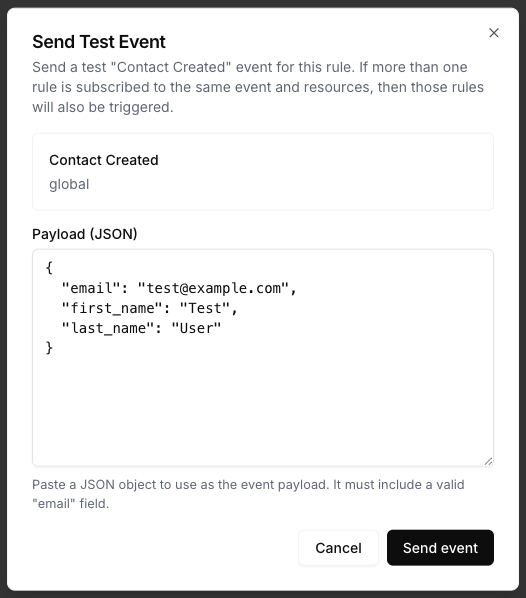
Use Send Test Event on the rule to verify the email action.
{
  "email": "test@example.com",
  "first_name": "Test",
  "last_name": "User",
  "template_variables": {
    "firstName": "Test",
    "workspaceName": "Acme",
    "trialEndsAt": "2026-04-18T00:00:00Z"
  }
}
In this example, template_variables.firstName, template_variables.workspaceName, and template_variables.trialEndsAt are available to the selected SendGrid Dynamic Template.
For an inline HTML Send Email rule, those values would instead be referenced directly in the rule body, for example {{first_name}}, {{last_name}}, or other mapped fields.
Check delivery
After the event runs, open Events and inspect the SendGrid delivery details. Meshes shows whether the rule completed, which action ran, and whether any retries were needed before the email was accepted.