Salesforce
Use Meshes to add contacts to Salesforce campaigns and update supported Contact picklist fields from product events.
Use the Salesforce integration when Meshes should react to product events by updating Salesforce campaign membership or Contact fields. A Salesforce admin installs the Meshes Salesforce package in the target org first, then a Meshes workspace can connect Salesforce, build rules for product events, and choose the Salesforce campaign or property each rule should target.
Supported actions
- Add to Campaign creates or updates the Contact and adds that Contact to a selected Salesforce campaign.
- Remove from Campaign removes the Contact from a selected Salesforce campaign.
- Update Property updates a supported Salesforce Contact picklist field to a selected value.
Install the Salesforce package
Salesforce requires the Meshes External Client App to be installed in the Salesforce org before OAuth can complete. Starting the OAuth flow from Meshes does not install the app for the org.
- Ask a Salesforce admin for the target org to open the Meshes Salesforce package install link.
- Complete the Salesforce package install flow for the users or profiles that should be allowed to connect Meshes.
- In Salesforce Setup, open External Client App Manager and confirm the Meshes app is listed.
- Confirm the app's OAuth policies allow the user who will create the Meshes connection.
Run the Meshes OAuth flow against the same Salesforce org where the package was installed.
Create the connection
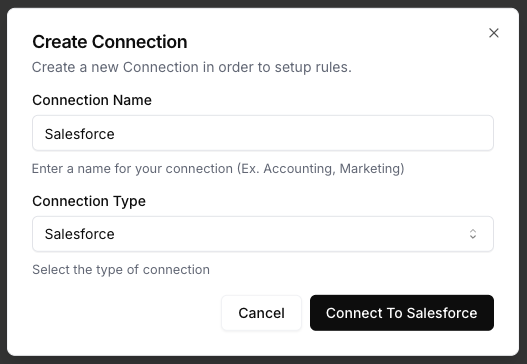
- Open Connections in your Meshes workspace.
- Click New Connection.
- Select Salesforce.
- Give the connection a clear name.
- Confirm the Meshes Salesforce package is installed in the Salesforce org.
- Click Connect to Salesforce and complete the OAuth flow.
After authorization, Meshes loads the campaigns and supported Contact properties available to that Salesforce org.
Create a rule
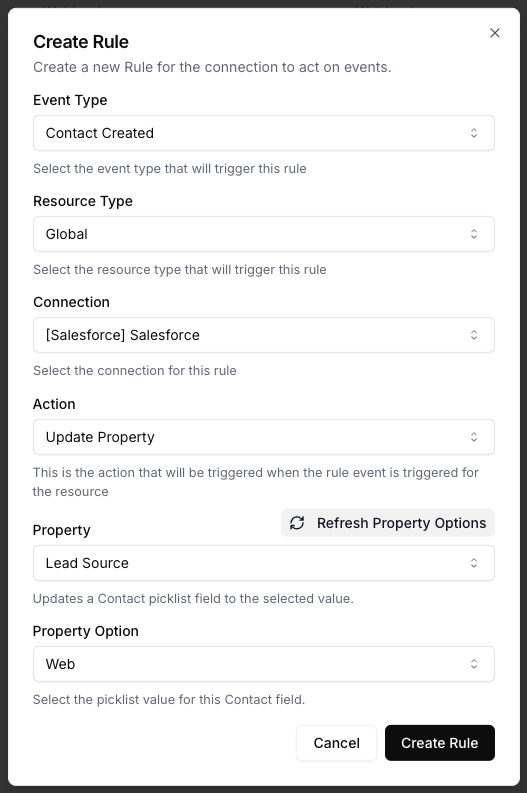
- Open Rules and click New Rule.
- Select the event type that should trigger the Salesforce action, such as
user.signuporcustomer.converted. - Select the resource type for that event.
- Choose your Salesforce connection.
- Select the action:
- Add to Campaign or Remove from Campaign requires a Salesforce campaign.
- Update Property requires a Contact picklist field and one allowed value for that field.
- Map the event fields Meshes should send to Salesforce.
- Save the rule.
For Salesforce rules, map email plus any contact profile fields you want available when Meshes creates or updates the Contact.
Send a test event
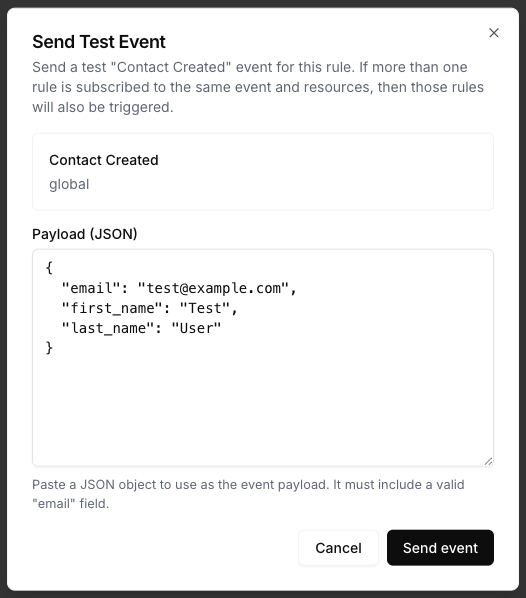
Use Send Test Event on the rule to verify the campaign or property action.
{
  "email": "test@example.com",
  "first_name": "Test",
  "last_name": "User",
  "phone": "+1 (512) 555-1212"
}
Review results
After the event runs, open Events and inspect the Salesforce delivery details. Meshes shows whether the rule completed, what action ran, and any retries or failures.
Notes
- Meshes finds or creates the Salesforce Contact by email before campaign or property actions run.
- The Meshes Salesforce package must be installed in the Salesforce org before OAuth. If Salesforce reports that the external client app is not installed, install the package in that org and retry the connection.
- Campaign availability depends on the Salesforce org and the permissions of the authorized user.
- Update Property only exposes updateable Contact picklist fields and their allowed values.
- Provide a last name in your mapped data when possible so new Contact creation has the fields Salesforce expects.