Zoom
Use Meshes to register contacts for Zoom meetings and webinars from product events.
Use the Zoom integration when Meshes should register users for meetings or webinars based on product behavior. In a Meshes workspace, you connect Zoom, create a rule for the event you care about, and select the meeting or webinar the rule should target.
Supported actions
- Add Meeting Registrant registers the contact for a selected Zoom meeting.
- Add Webinar Registrant registers the contact for a selected Zoom webinar.
Create the connection
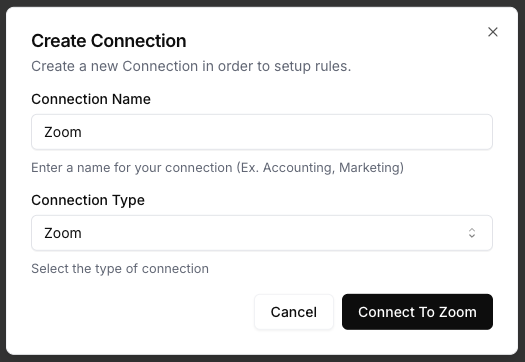
- Open Connections in your Meshes workspace.
- Click New Connection.
- Select Zoom.
- Give the connection a clear name.
- Click Connect to Zoom and complete the OAuth flow.
After authorization, Meshes loads the meetings and webinars available to that Zoom account.
Create a rule
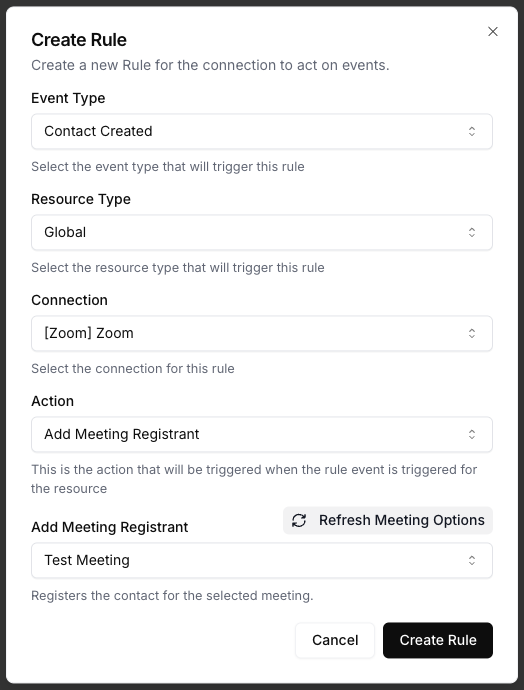
- Open Rules and click New Rule.
- Select the event type that should trigger the Zoom action, such as
demo.bookedoronboarding.session.requested. - Select the resource type for that event.
- Choose your Zoom connection.
- Select Add Meeting Registrant or Add Webinar Registrant.
- Choose the meeting or webinar.
- Map the event fields Meshes should send to Zoom.
- Save the rule.
Zoom registrant mappings support email plus Zoom's supported registration fields, including name, phone, company, and location fields.
Send a test event
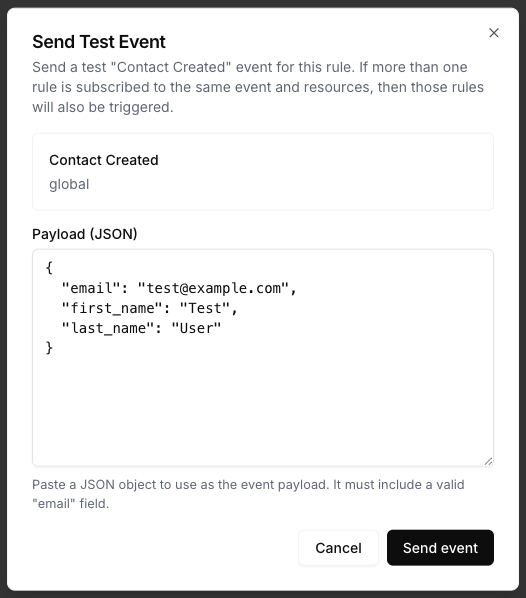
Use Send Test Event on the rule to verify the registration flow.
{
  "email": "test@example.com",
  "first_name": "Test",
  "last_name": "User",
  "job_title": "Product Lead"
}
Review results
After the event runs, open Events and inspect the Zoom delivery details. Meshes shows whether the rule completed, what action ran, and any retries or failures.
Notes
- Meetings and webinars are loaded from the connected Zoom account.
emailis required for Zoom registrant creation.- Only Zoom-supported registrant fields appear in the mapping catalog for this integration.