Discord
Use Meshes to post Discord embeds with titles and templated message bodies from product events.
Use the Discord integration when Meshes should notify a channel about product behavior. In a Meshes workspace, you connect Discord, choose the channel in the rule builder, set the embed title, write the message template Meshes should render, and let Meshes deliver the notification when the event fires.
Supported actions
- Send Message posts a Discord embed with a required title and templated message body to a selected channel.
Add the bot to your server
Discord uses a server authorization flow. During connection setup, you choose the Discord server where the Meshes bot should be added. After the bot is authorized, Meshes can load the text and announcement channels available on that server for rule selection.
Create the connection
- Open Connections in your Meshes workspace.
- Click New Connection.
- Select Discord.
- Give the connection a clear name.
- Click Connect to Discord.
- Choose the Discord server where you want Meshes to post notifications.
- Approve the authorization flow and return to Meshes.
After authorization, Meshes loads the Discord channels available to that server.
Create a rule
- Open Rules and click New Rule.
- Select the event type that should trigger the Discord message, such as
user.signup,trial.expired, orpayment.failed. - Select the resource type for that event.
- Choose your Discord connection.
- Select Send Message.
- Choose the Discord channel.
- Enter the title Meshes should show at the top of the Discord embed.
- Enter the message template Meshes should render in the embed body.
- Save the rule.
Example rule values:
Title: Payment failed
Template:
Customer: {{customer.email}}
Plan: {{plan}}
Retry at: {{retry_at}}
Templates support {{field}} interpolation, including nested values such as {{user.name}}. The title appears at the top of the Discord embed, and the template becomes the embed body.
Copyable message body ideas
Use a short title such as New signup, Trial started, or Payment failed, then pair it with one of the body templates below. The field names are examples, so replace them with the keys from your own Meshes event payload.
New signup
🎉 New signup
Email: {{email}}
Plan: {{plan}}
Source: {{signup_source}}
Trial started
🚀 Trial started
Account: {{account.name}}
Plan: {{plan}}
Owner: {{owner.name}}
Lesson completed
✅ Lesson completed
User: {{user.name}}
Lesson: {{lesson.title}}
Course: {{course.title}}
High-intent page visit
👀 High-intent page visit
User: {{email}}
Page: {{page.path}}
UTM: {{utm_source}}
Payment failed
💳 Payment failed
Customer: {{customer.email}}
Plan: {{plan}}
Retry at: {{retry_at}}
Upgrade completed
📈 Upgrade completed
Account: {{account.name}}
From: {{previous_plan}}
To: {{plan}}
MRR: {{mrr}}
Custom product signal
🧪 Feature flag changed
Workspace: {{workspace.name}}
Flag: {{flag.key}}
Value: {{flag.value}}
Send a test event
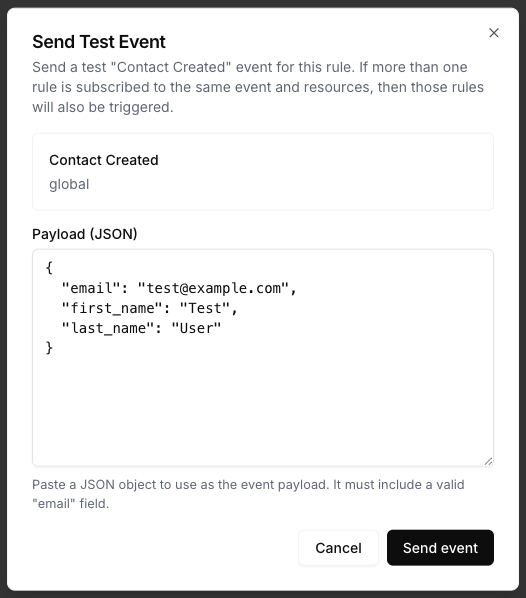
Use Send Test Event on the rule to confirm the title and message body render the way you expect in Discord.
{
  "email": "test@example.com",
  "plan": "pro"
}
Review results
After the event runs, open Events and inspect the Discord delivery details. Meshes shows whether the rule completed, what action ran, and any retries or failures.
Notes
Meshes sends Discord notifications as embeds so the event context is easy to scan in-channel.
- If Discord rate limits the request, Meshes retries the delivery automatically.
- If the selected channel is no longer available, the delivery shows a failed result in Events so you can update the rule.
- If the title is blank or the template renders to an empty message, Meshes does not send the notification.
Removing the bot
If the Meshes bot is removed from the Discord server, future deliveries from that connection will fail until the bot is added again. Reconnect the Discord connection or create a new one after the bot is restored, then send a test event to confirm the channel list and delivery behavior are current.